Command Line Tool
The Pebble SDK includes a command line tool called pebble. This tool allows
developers to create new projects, build projects, install apps on a watch and
debug them.
Enabling the Developer Connection
Most pebble commands allow interaction with a Pebble watch. This relies on a
communication channel opened between the pebble tool on a computer and the
Pebble mobile application on the phone.
To use a physical watch, enable the Developer Connection in the Pebble mobile application. This is not required when using the emulator.
Connecting to a Pebble
There are several connection types possible with the command line tool. These
can be used with any command that involves a watch, for example install.
Connect to a physical watch through the CloudPebble connection. This works from
any network, and requires signing in with the same Pebble account used in the
Pebble mobile application (see login):
$ pebble login
$ pebble install --cloudpebble
Using --phone without an IP address also uses the CloudPebble connection.
Connect to a physical watch connected to a phone on the same Wi-Fi network,
where IP is the address shown in the Pebble mobile application when the
LAN connection
is enabled:
$ pebble install --phone IP
Connect to an already running QEMU instance available on the HOST and PORT
provided. Add --pypkjs with --platform PLATFORM to also start the PebbleKit
JS runtime for that platform:
$ pebble install --qemu HOST:PORT
$ pebble install --qemu HOST:PORT --pypkjs --platform basalt
Connect directly to a watch using a local Bluetooth connection, where SERIAL
is the path to the device file. On OS X, this is similar to
/dev/cu.PebbleTimeXXXX-SerialPo or /dev/cu.PebbleXXXX-SerialPortSe:
Note: Replace 'XXXX' with the actual value for the watch in question.
$ pebble install --serial SERIAL
Configure the Pebble Tool
Use the CloudPebble connection by default:
$ export PEBBLE_CLOUDPEBBLE=1
Or save the IP address of the phone for the LAN connection in an environment variable:
$ export PEBBLE_PHONE=192.168.1.42
Note: Only set one of
PEBBLE_CLOUDPEBBLEorPEBBLE_PHONE. When switching between the CloudPebble and LAN connections,unsetthe other variable, as it can take priority over the--phoneor--cloudpebbleargument.
Save the default choice of emulator platform:
$ export PEBBLE_EMULATOR=aplite
Save the default instance of QEMU:
$ export PEBBLE_QEMU=localhost:12344
Debugging Output
Get up to four levels of pebble tool log verbosity. This is available for all
commands:
# Minimum level of verbosity
$ pebble install -v

# Maximum logging verbosity
$ pebble install -vvvv
Installing Watchapps
In addition to interacting with a physical Pebble watch, the Pebble emulator included in the local SDK can be used to run and debug apps without any physical hardware.
Build an app, then use pebble install with the --emulator flag to choose
an emulator platform: aplite, basalt, chalk, diorite, emery, flint
or gabbro. This allows developers to test out apps on all platforms before
publishing to the Pebble appstore. For example, to emulate Pebble Time or
Pebble Time Steel:
$ pebble install --emulator basalt
Note: If no
--emulatorparameter is specified, the running emulator will be used.
Two options apply to --emulator: --sdk VERSION launches the emulator with
an installed SDK other than the active one, and --vnc starts a VNC server
for the emulator display.
With a suitable color app installed, the emulator will load and display it:
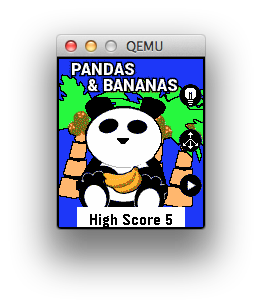
The Pebble physical buttons are emulated with the following mapping:
| Button | Key |
|---|---|
| Back | Q, left arrow |
| Up | W, up arrow |
| Select | S, right arrow |
| Down | X, down arrow |
Pebble Timeline in the Emulator
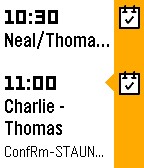
With the emulator, it is also possible to view any past and future pins on the Pebble timeline by pressing Up or Down from the main watchface screen:
 |
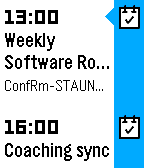 |
| Timeline, past view | Timeline, future view |
Commands
This section summarizes the available commands that can be used in conjunction
with the pebble tool, on the applicable SDK versions. Most are designed to
interact with a watch with --phone or the emulator with --emulator.
Project Management
new-project
$ pebble new-project [--c | --alloy] [--simple] [--javascript] [--worker] [--ai] NAME
Create a new project called NAME. This will create a directory in the
location the command is used, containing all essential project files.
There are also a number of optional parameters that allow developers to choose features of the generated project to be created automatically:
--simple- Initializes the main.cfile with a minimal app template.--javascript- Creates a new application including a./src/pkjs/index.jsfile to quickly start an app with a PebbleKit JS component. Read PebbleKit JS for more information.--worker- Creates a new application including a./worker_src/NAME_worker.cfile to quickly start an app with a background worker. Read Background Worker for more information.--ai- Adds instruction files for Claude Code and Cursor to the project, so an AI coding agent can build and test it.--alloy- Creates a new Alloy project, with JavaScript that runs on the watch insrc/embeddedjs/. The C-specific options above do not apply.--c- Creates a C project. This is the default.
new-package
$ pebble new-package [--javascript] NAME
Create a new Pebble package called NAME, for publishing a library to npm
rather than an app. --javascript adds a js directory. Read
Pebble Packages for more information.
build
$ pebble build [--debug]
Compile and build the project into a .pbw file that can be installed on a
watch or the emulator. --debug builds without optimizations for easier
debugging with pebble gdb. Any further arguments are passed to waf.
install
$ pebble install [FILE] [--logs] [--force] [--throttle [SECONDS]] [--qemu_logs]
Install the current project to the watch connected to the phone with the given
IP address, or to the emulator on the PLATFORM. See
Hardware Information for a list of
available platforms.
For example, the Aplite platform is specified as follows:
$ pebble install --emulator aplite
It is also possible to use this command to install a pre-compiled .pbw FILE.
In this case, the specified file will be installed instead of the current
project.
Note: A
FILEparameter is not required if runningpebble installfrom inside a buildable project directory. In this case, the.pbwpackage is found automatically in./build.
--logs- Display app logs after installing, aspebble logsdoes.--force- Install even if the.pbwdoes not support the connected platform.--throttle [SECONDS]- Slow down the transfer to avoid QEMU timeouts with large apps. Defaults to 0.004 seconds between packets when given without a value.--qemu_logs- Show the QEMU serial log while installing on the emulator.
clean
$ pebble clean
Delete all build files in ./build to prepare for a clean build, which can
resolve some state inconsistencies that may prevent the project from building.
convert-project
$ pebble convert-project
Convert an existing Pebble project to the current SDK.
Note: This will only convert the project, the source code will still have to updated to match any new APIs.
analyze-size
$ pebble analyze-size [ELF] [--summary] [--verbose]
Print the size of each section of the built app, to see how much of the
platform's app memory the code and static data use. ELF defaults to the
build output of the current project. --summary prints one line per section
and --verbose adds a per-symbol breakdown.
package
$ pebble package install [PACKAGE]
$ pebble package uninstall PACKAGE
$ pebble package login
$ pebble package publish
Manage the Pebble Packages a project depends on. install
adds an npm package to package.json and installs it, uninstall removes
one, login signs in to npm and publish publishes the current package to
npm.
publish
$ pebble publish [--release-notes TEXT] [--is-published] [--non-interactive] [--all-platforms] [--no-gif-all-platforms]
Build the project and upload it as a new release to the app's listing on the
Developer Dashboard. Requires pebble login.
If the app does not have a listing yet, the command prompts for the details to
create one. --non-interactive uses flags (--name, --version,
--description, --source, --category, --icon-small, --icon-large,
--screenshots FILE...) instead of prompts, for CI. By default the command
captures a rollover GIF on the emulator for each platform the app supports
before uploading; --no-gif-all-platforms skips this and --all-platforms
captures static screenshots as well. Uploaded releases are published
immediately; --is-published is accepted but has no effect in the current
version.
For a plugin project the command uploads a plugin listing instead: it asks for a
plugin category, skips screenshots, and generates a line icon if you don't
provide one. If the plugin declares OAuth connectors, the command then offers to
set up any that aren't set up yet; --reconfigure-oauth asks about every one.
See Publishing Plugins.
oauth-connector
$ pebble oauth-connector [show|set|delete] [--slug SLUG] [--app-id ID]
Show, set up or delete the OAuth connectors of the current plugin project's
appstore listing. set prompts for the provider's authorization URL, token URL,
scopes, client ID and client secret; for CI pass them as flags
(--provider-label, --authorize-url, --token-url, --scopes,
--client-id), with the secret in --client-secret-file or
PEBBLE_OAUTH_CLIENT_SECRET, and add --non-interactive. Requires
pebble login.
SDK Management
sdk
$ pebble sdk list
$ pebble sdk install VERSION
$ pebble sdk activate VERSION
$ pebble sdk uninstall [--keep-data] VERSION
$ pebble sdk set-channel CHANNEL
$ pebble sdk include-path PLATFORM [--sdk VERSION]
Manage the installed SDKs. list shows the installed SDKs and the versions
available for download, install downloads and installs a version (latest
for the newest), activate selects which installed SDK pebble build and
the emulator use, and uninstall removes one, keeping its emulator data with
--keep-data. set-channel selects the release channel that list and
install read from. include-path prints the directory of SDK headers for
PLATFORM, for editor and language server configuration.
Several SDK versions can be installed side by side. The SDK version (4.x) is
separate from the version of the pebble tool itself (5.x).
Pebble Interaction
logs
$ pebble logs
Continuously display app logs from the watch connected to the phone with the
given IP address, or from a running emulator.
App log output is colorized according to log level. This behavior can be forced
on or off by specifying --color or --no-color respectively.
screenshot
$ pebble screenshot [FILENAME] [--no-correction] [--no-open]
$ pebble screenshot --all-platforms
$ pebble screenshot --gif-all-platforms [--gif-fps FPS]
Take a screenshot of the watch connected to the phone with the given IP
address, or from any running emulator. If provided, the output is saved to
FILENAME.
Color correction may be disabled by specifying --no-correction. The
auto-opening of screenshots may also be disabled by specifying --no-open.
--all-platforms takes a screenshot on the emulator for each platform the
current project supports, building the project first only if build/ has no
.pbw yet; run pebble build before it to capture current code. --gif-all-platforms does the same
but records a rollover GIF of the app on each platform, capped at --gif-fps
frames per second (default 30). These are the images pebble publish
uploads.
ping
$ pebble ping
Send a ping to the watch connected to the phone with the given IP address,
or to any running emulator.
repl
$ pebble repl
Launch an interactive python shell with a pebble object to execute methods on,
using the watch connected to the phone with the given IP address, or to any
running emulator.
send-app-message
$ pebble send-app-message [--int KEY=VALUE ...] [--uint KEY=VALUE ...] [--string KEY=VALUE ...] [--bytes KEY=HEX ...] [--bytes-file KEY=FILE ...] [--app-uuid UUID]
Send an AppMessage dictionary to the running watchapp, to test its inbox
handler without a PebbleKit JS or companion app. Keys are integers. Each
option takes one or more KEY=VALUE entries, for example --int 1=42 2=43
--string 3=hello. Give each option once; a repeated option replaces the
earlier entries. --app-uuid selects the target app when it is not the
current project.
fw
$ pebble fw install FILE [--slot {0,1}]
$ pebble fw install-lang FILE
$ pebble fw coredump [FILENAME] [--fresh]
$ pebble fw flash-logs --board BOARD
$ pebble fw enter-prf
Firmware management for a connected watch. install installs a .pbz
firmware bundle (--slot selects the slot for multi-slot bundles),
install-lang installs a language pack, coredump downloads the most recent
coredump from the watch (--fresh requires one that has not been read yet),
flash-logs dumps the firmware's flash log for the given board, and
enter-prf reboots the watch into the recovery firmware.
data-logging
list
$ pebble data-logging list
List the current data logging sessions on the watch.
download
$ pebble data-logging download --session-id SESSION-ID FILENAME
Downloads the contents of the data logging session with the given ID
(as given by pebble data-logging list) to the given filename.
disable-sends
pebble data-logging disable-sends
Disables automatically sending data logging to the phone. This enables downloading data logging information without the phone's interference. It will also suspend any other app depending on data logging, which includes some firmware functionality. You should remember to enable it once you are done testing.
enable-sends
pebble data-logging enable-sends
Re-enables automatically sending data logging information to the phone.
get-sends-enabled
pebble data-logging get-sends-enabled
Indicates whether data logging is automatically sent to the phone. Change
state with enable-sends and disable-sends.
Emulator Interaction
Note: If the emulator does not boot, keeps apps that were uninstalled or stays on one screen, run
pebble killto stop it and thenpebble wipeto delete its stored data. The nextpebble installstarts the emulator with a fresh flash image.
gdb
$ pebble gdb
Use GDB to step through and debug an app
running in an emulator. Some useful commands are displayed in a cheat sheet
when run with --help and summarized in the table below:
Note: Emulator commands that rely on interaction with the emulator (e.g.
emu-app-config) will not work while execution is paused with GDB.
| Command | Description |
|---|---|
| ctrl-C | Pause app execution. |
continue or c |
Continue app execution. The app is paused while a (gdb) prompt is available. |
ctrl-D or quit |
Quit gdb. |
break or b |
Set a breakpoint. This can be either a symbol or a position: - b function_name to break when entering a function.- b file_name.c:45 to break on line 45 of file_name.c. |
step or s |
Step forward one line. |
next or n |
Step over the current line, avoiding stopping for any functions it calls into. |
finish |
Run forward until exiting the current stack frame. |
backtrace or bt |
Print out the current call stack. |
p [expression] |
Print the result of evaluating the given expression. |
info args |
Show the values of arguments to the current function. |
info locals |
Show local variables in the current frame. |
bt full |
Show all local variables in all stack frames. |
info break |
List break points (#1 is <app_crashed>, and is inserted by the pebble tool). |
delete [n] |
Delete breakpoint #n. |
Read Debugging with GDB for help on using GDB to debug app.
emu-control
$ pebble emu-control [--port PORT]
Send near real-time accelerometer and compass readings from a phone, tablet, or
computer to the emulator. When run, a QR code will be displayed in the terminal
containing the IP address the device should connect to. Scanning the code will
open this address in the device's browser. The IP address itself is also printed
in the terminal for manual entry. PORT may be specified in order to make
bookmarking the page easier.
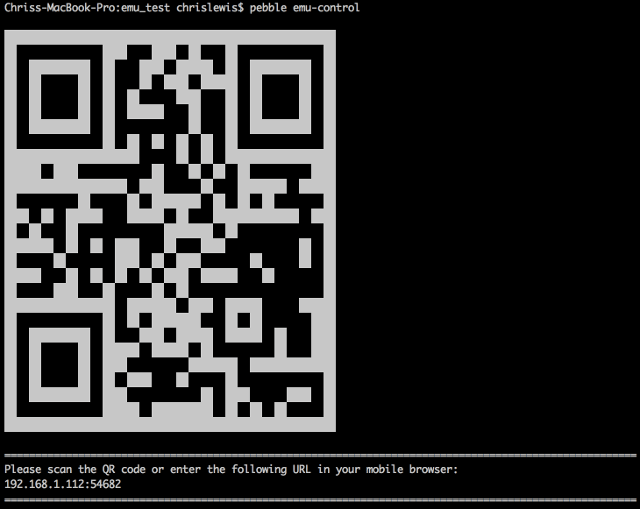
After connecting, the device's browser will display a UI with two modes of operation.
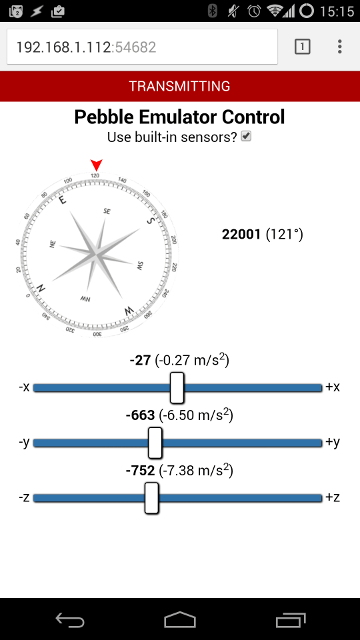
The default mode will transmit sensor readings to the emulator as they are recorded. By unchecking the 'Use built-in sensors?' checkbox, manual values for the compass bearing and each of the accelerometer axes can be transmitted to the emulator by manipulating the compass rose or axis sliders. Using these UI elements will automatically uncheck the aforementioned checkbox.
The values shown in bold are the Pebble SDK values, scaled relative to
TRIG_MAX_ANGLE in the case of the compass bearing value, and in the range of
+/-4000 (+/- 4g) for the accelerometer values. The physical measurements with
associated units are shown beside in parentheses.
emu-app-config
$ pebble emu-app-config [--file FILE]
Open the app configuration page associated with the running app, if any. Uses
the HTML configuration FILE if provided.
See App Configuration to learn about emulator- specific configuration behavior.
emu-tap
$ pebble emu-tap [--direction DIRECTION]
Send an accelerometer tap event to any running emulator. DIRECTION can be one
of x+, x-, y+, y-, z+, or z-.
emu-bt-connection
$ pebble emu-bt-connection --connected STATE
Send a Bluetooth connection event to any running emulator. STATE can be either
yes or no for connected and disconnected events respectively.
Note: The disconnected event may take a few seconds to occur.
emu-compass
$ pebble emu-compass --heading BEARING [--uncalibrated | --calibrating | --calibrated]
Send a compass update event to any running emulator. BEARING must be a number
between 0 and 359 to be the desired compass bearing. Use any of
--uncalibrated, --calibrating, or --calibrated to set the calibration
state.
emu-battery
$ pebble emu-battery [--percent LEVEL] [--charging]
Send a battery update event to any running emulator. LEVEL must be a number
between 0 and 100 to represent the new battery level. The presence of
--charging will determine whether the charging cable is plugged in.
emu-accel
$ pebble emu-accel DIRECTION [FILE]
Send accelerometer data events to any running emulator. DIRECTION can be any
of tilt-left, tilt-right, tilt-forward, tilt-back, gravity+x,
gravity-x, gravity+y, gravity-y, gravity+z, gravity-z, none and
custom. If custom is selected, give a FILE with one line per reading of
comma-separated x, y and z values.
transcribe
$ pebble transcribe [message] [--error {connectivity,disabled,no-speech-detected}]
Run a server that will act as a transcription service. Run it before
invoking the Dictation service in an app. If message is provided,
the dictation will be successful and that message will be provided.
If --error is provided, the dictation will fail with the given error.
Exactly one of message and --error is required.
$ pebble transcribe "Hello, Pebble!"
kill
$ pebble kill [--force]
Kill both the Pebble emulator and phone simulator. --force sends SIGKILL.
emu-time-format
pebble emu-time-format --format FORMAT
Set the time format of the emulator to either 12-hour or 24-hour format, with a
FORMAT value of 12h or 24h respectively.
emu-set-timeline-quick-view
$ pebble emu-set-timeline-quick-view STATE
Show or hide the Timeline Quick View system overlay. STATE can be on or off.
emu-set-content-size
$ pebble emu-set-content-size SIZE
Set the system content size on the emulator, as the user does in Settings.
SIZE can be small, medium, large or x-large. Read
Content Size for how apps respond to it.
emu-set-time
$ pebble emu-set-time TIME [--utc]
Set the emulator's clock. TIME is either HH:MM:SS for a time today, or a
Unix timestamp in seconds. --utc interprets HH:MM:SS as UTC rather than
local time.
emu-button
$ pebble emu-button {click,push,release} [BUTTON ...] [--duration MS] [--repeat N] [--interval MS]
Press buttons on the emulator from the command line. click presses and
releases, push holds a button down and release lets it go. BUTTON is one
or more of back, up, select and down; several buttons are pressed
together. --duration sets the click length in milliseconds (default 100),
--repeat the number of clicks (default 1) and --interval the gap between
them (default 200).
wipe
$ pebble wipe
Delete the data stored for the emulator of every platform in the current SDK,
including the flash image that holds installed apps and settings and the
phone simulator's PebbleKit JS storage, but not the logged in Pebble account.
Run pebble kill first so that a running emulator does not keep the old
data. To wipe all data for every SDK version and log out, specify
--everything.
Pebble Account Management
login
$ pebble login [--status] [--no-open-browser]
Sign in to your Pebble account. The command opens a browser window to complete
the sign in; --no-open-browser prints the URL instead, for use over SSH.
Signing in is required for the CloudPebble connection (--cloudpebble) and
for pebble publish. --status prints whether you
are signed in and whether the account is linked to a Developer Dashboard
account, then exits.
logout
$ pebble logout
Logs out the currently logged in Pebble account from this instance of the command line tool.
Pebble Timeline Interaction
insert-pin
$ pebble insert-pin FILE [--id ID] [--app-uuid UUID]
Insert a JSON pin from FILE into the timeline of the connected watch or
emulator. - reads the pin from standard input. --id supplies the pin id
when the file has none; if both are given they must match. --app-uuid sets
the pin's parent app when it is not the current project.
delete-pin
$ pebble delete-pin --id ID
Delete a pin previously inserted with insert-pin, specifying the same pin
ID.