Developer Connection
In order to install apps and view logs on a physical watch from CloudPebble or
the pebble tool, the Pebble mobile app must be set up to allow a connection
from the computer to the watch. This is called the Developer Connection, and it
speeds up development by letting you install apps directly from your
development environment.
The Developer Connection can work in two ways:
- CloudPebble connection (default) - The phone connects to the CloudPebble
proxy using your Pebble account. CloudPebble and the
pebbletool reach the phone through the proxy by signing in to the same account. This works from anywhere, and the phone and computer do not need to be on the same network. - LAN connection - The phone runs a server on port 9000 that the
pebbletool connects to directly using the phone's IP address. This requires the phone and computer to be on the same Wi-Fi network.
The steps below are the same in the Android and iOS versions of the Pebble app.
Enabling the Developer Connection
In the Pebble mobile app:
Make sure you are signed in with your Pebble account. If not, go to Settings > General and tap Sign In - Pebble Account.
Make sure your watch is connected, then open the Devices tab.
Tap the three dot icon on your watch to open its menu, then enable the Dev Connection toggle.
The menu will show Connected to CloudPebble once the connection is enabled.
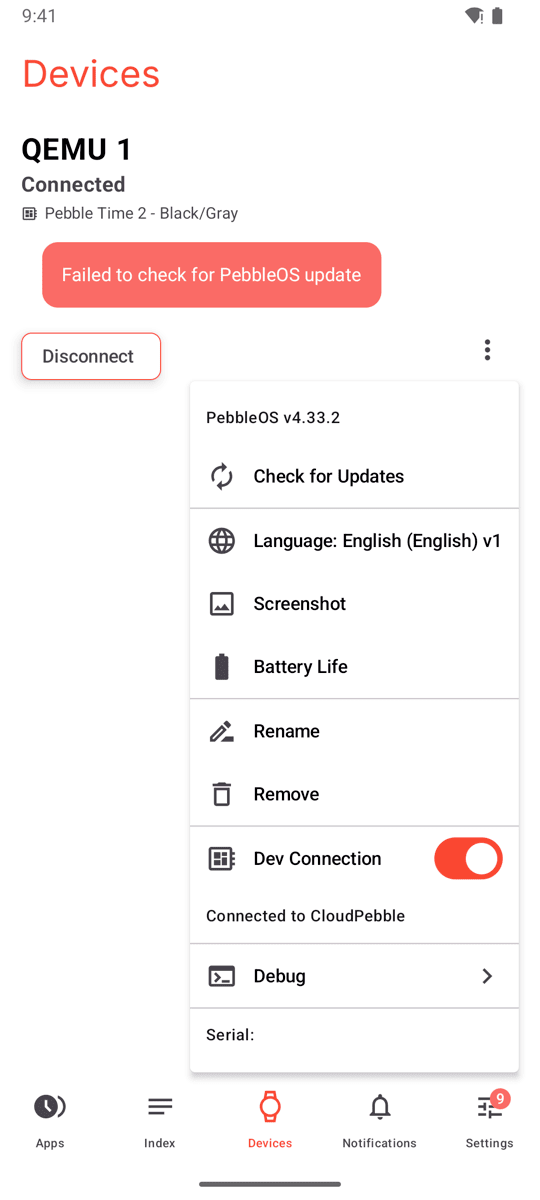
While the Developer Connection is enabled, a small developer icon is shown next to the watch's model name in the Devices tab.
Note: The Dev Connection option is only shown while the watch is connected. A watch that is out of range, in a low-power state or still reconnecting does not show it; wait for the Devices tab to report the watch as connected and open the menu again. It cannot be enabled while signed out, unless the LAN connection is turned on (see below).
The Developer Connection always goes through the phone. The watch's charging cable does not carry data, so apps cannot be installed or debugged over it.
Using with CloudPebble
Sign in to CloudPebble with the same Pebble account you use in the Pebble mobile app.
Open your project and open Build & Run in the sidebar. The Phone tab appears once the project has been built successfully.
Under Run On, select the Phone tab and choose New Cloud Dev Connection.
Click Install and Run. Use View app logs to see the logs from your app, and Screenshot to take a screenshot of the watch.
The Phone tab offers three connection types. All three reach the phone through the CloudPebble proxy; they differ in how CloudPebble signs in to it.
| Option | Signs in with | Use it when |
|---|---|---|
| New Cloud Dev Connection | Your Pebble account, the one CloudPebble is signed in with | Always, with the current Pebble mobile app. |
| Cloud Dev Connection | A GitHub account linked under Settings > GitHub Integrations | Only with earlier versions of the Pebble mobile app, which signed in to the Developer Connection with GitHub. |
| Local Dev Connection | The token of a legacy Pebble account sign-in | Not with the current Pebble mobile app. |
CloudPebble cannot connect to the phone's IP address directly, so the LAN
connection described below is for the pebble tool only.
Using with the pebble Tool
- Sign in to your Pebble account. This opens a browser window to complete the sign in:
$ pebble login
- Use the
--cloudpebbleargument with any command that interacts with a watch. The tool will wait for the phone to connect to the CloudPebble proxy before continuing:
  $ pebble install --cloudpebble
  $ pebble logs --cloudpebble
Using --phone without an IP address does the same thing. To use the
CloudPebble connection by default, set the PEBBLE_CLOUDPEBBLE environment
variable:
$ export PEBBLE_CLOUDPEBBLE=1
Using a LAN Connection
The LAN connection lets the pebble tool connect to the phone directly over
your local network, without signing in.
CloudPebble does not offer a way to enter the phone's IP address. Its
Local Dev Connection option still goes through the cloud proxy, so use the
pebble tool for the LAN connection.
Note: The LAN connection is not authenticated. Anyone on the same network can install apps on your watch while it is enabled, so only use it on trusted networks.
In the Pebble mobile app:
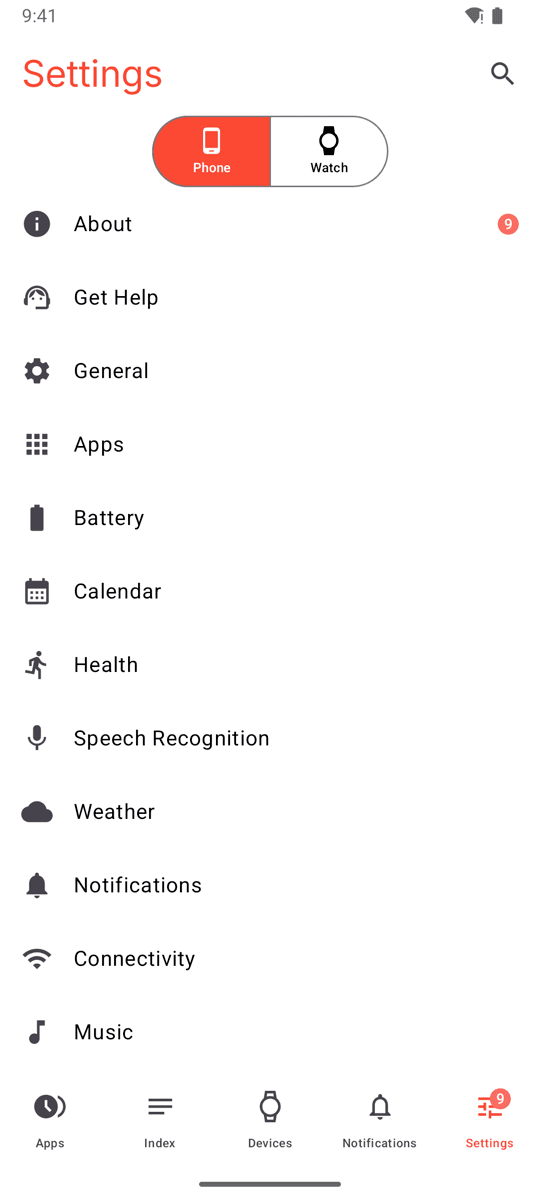
- Open the Settings tab, select Phone at the top, and tap Connectivity.
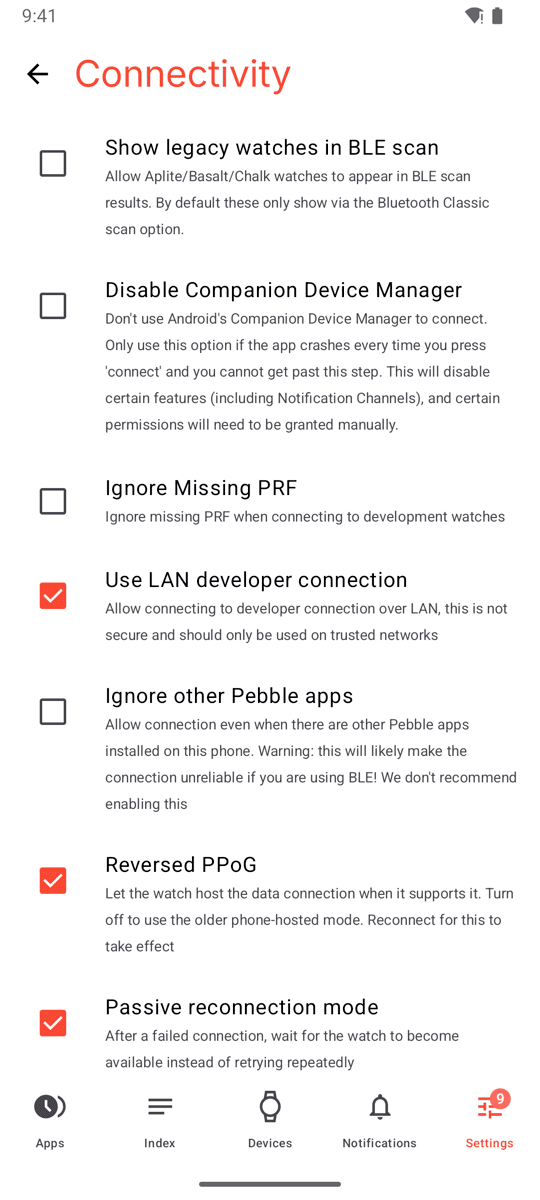
- Enable Use LAN developer connection.
Go back to the Devices tab, open your watch's menu and enable the Dev Connection toggle. If it was already enabled, toggle it off and on again.
Make note of the IPv4 address shown under the toggle.
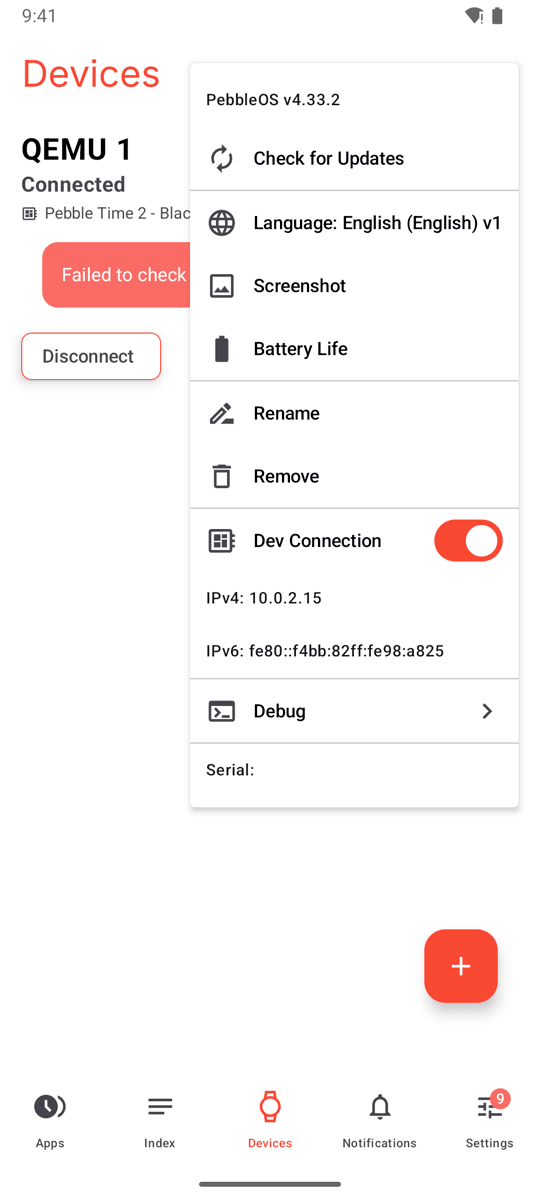
Use the IP address with the --phone argument:
$ pebble install --phone 192.168.1.42
$ pebble logs --phone 192.168.1.42
The server always uses port 9000. To avoid typing the IP address each time, save it in an environment variable:
$ export PEBBLE_PHONE=192.168.1.42
Note: Only set one of
PEBBLE_CLOUDPEBBLEorPEBBLE_PHONE. When switching between the CloudPebble and LAN connections,unsetthe other variable, as it can take priority over the--phoneor--cloudpebbleargument.
Connecting over USB on Android
On Android, the LAN connection can also be used over USB with adb, which
works even when the phone and computer are on different networks. With the
phone connected over USB and the Pebble app running, enable the LAN connection
and forward port 9000 to the computer:
$ adb shell am broadcast -a coredevices.coreapp.DEV_CONNECTION \
    -n coredevices.coreapp/coredevices.coreapp.debug.DevConnectionReceiver
$ adb forward tcp:9000 tcp:9000
$ pebble install --phone 127.0.0.1
Working Without Internet Access
The CloudPebble connection needs the phone and the computer to reach the
proxy on the internet. Without internet access, use the LAN connection with
--phone and the phone's IP address. The phone and computer only need to be
on the same Wi-Fi network, for example a hotspot started on the phone. On
Android, the USB method above works with no network at all.
The --serial argument of the pebble tool connects to a watch over a
Bluetooth serial port on the computer. It only works with watches that
support Bluetooth Classic. Pebble 2 Duo, Pebble Time 2 and Pebble Round 2
use Bluetooth LE only, so --serial cannot be used with them.
Limitations
Inserting timeline pins with pebble insert-pin is not currently supported
over the Developer Connection.