Microphone
On the emery, flint and gabbro platforms, the Microphone API
gives watchapps the raw audio, not just a transcription like
Dictation does. There are two ways to use
it:
- Streaming to the phone with
mic_stream_to_phone_start(). The watch compresses the audio and sends it to the app's PebbleKit JS, which receives 16 kHz, 16-bit mono PCM. Use this when the processing happens on the phone or in the cloud, for example speech recognition, recording or audio analysis. - Capturing on the watch with
mic_capture_start(). The app receives 16 kHz, 16-bit mono PCM samples in a callback on the watch. Use this for processing that happens on the watch, for example level meters, tuners or clap detection.
The Microphone API needs SDK 4.44 and firmware 4.44.3 or later. It isn't
available on the older basalt, chalk and diorite platforms, even though
those watches have a microphone for dictation, or on aplite, which has no
microphone.
Requirements
Both parts of the API have the same rules:
- Only foreground watchapps can use the microphone. Watchfaces get
MicStreamStartErrWatchfaceorMicCaptureStartErrWatchface, and background workers can't use the API. - Only one user at a time. An app can stream or capture, but not both at
once. While the system uses the microphone, for example for dictation, a
start returns a
Busyerror. - The app must declare the
WatchMicrophonepermission, and the user must allow it in the Pebble mobile app. - The system shows a "Listening" indicator at the bottom of the screen
while the microphone is on. This shrinks the unobstructed area, so lay out
the app with
layer_get_unobstructed_bounds(). See The Listening Indicator. - The microphone stops when the app loses focus, for example when a
notification appears. The app is told why through its
stoppedhandler. Starting again is up to the app.
Declaring the Permission
Add WatchMicrophone to usesPermissions in the pebble block of
package.json:
"pebble": {
  "usesPermissions": [
    "WatchMicrophone"
  ]
}
Permissions need manifestVersion 2, which is the default since SDK 4.44. Don't
set "manifestVersion": 1: the phone never allows the microphone for a
version 1 app. The build warns when an app calls mic_capture_start() or
mic_stream_to_phone_start() without declaring the permission.
The Pebble mobile app only allows the microphone when permissions are turned on (Settings → Plugins → Plugins / permissions preview, see Pebble Plugins Preview). Without that, every stream and capture is refused. Depending on the user's permission settings, the microphone is allowed straight away or needs the user's approval. A start doesn't wait for an answer: while the permission still needs approval, the start is refused, and the user can allow it on the app's page in the Pebble app. The user can take the permission away at any time, which also stops a running stream or capture.
For capture, the phone syncs the grant to the watch, where it stays until the phone updates it, so capture works without a phone connection once the grant has been synced.
Streaming to PebbleKit JS
Starting a Stream on the Watch
Call mic_stream_to_phone_start() with a MicStreamHandlers. The
stopped handler is required. The started handler is optional and is called
once the phone accepts the stream:
static void stream_started(void *context) {
  text_layer_set_text(s_status_layer, "Listening...");
}

static void stream_stopped(MicStreamStopReason reason, void *context) {
  switch (reason) {
    case MicStreamStopReasonFocusLost:
      text_layer_set_text(s_status_layer, "Paused");
      break;
    case MicStreamStopReasonPhone:
      text_layer_set_text(s_status_layer, "Phone ended the stream");
      break;
    default:
      text_layer_set_text(s_status_layer, "Stopped");
      break;
  }
}

static void start_streaming(void) {
  const MicStreamStartResult result = mic_stream_to_phone_start(
      (MicStreamHandlers){
        .started = stream_started,
        .stopped = stream_stopped,
      },
      NULL);
  if (result != MicStreamStartOk) {
    APP_LOG(APP_LOG_LEVEL_WARNING, "Couldn't stream: %d", (int)result);
  }
}
MicStreamStartOk only means the request was sent. The phone can still
refuse it: when the user hasn't allowed the microphone, when the app has no
PebbleKit JS, or when its PebbleKit JS hasn't fired ready within about 6
seconds. In that case stopped is called with MicStreamStopReasonPhone.
Call mic_stream_to_phone_stop() to end the stream. Stopping it yourself
doesn't call stopped. mic_stream_to_phone_is_active() returns true from
a successful start until the stream ends.
The stopped handler tells the app why the stream ended:
| Reason | Meaning |
|---|---|
MicStreamStopReasonStopped |
The app stopped the stream. |
MicStreamStopReasonFocusLost |
The app lost focus, for example to a notification. |
MicStreamStopReasonInterrupted |
The system took the microphone, for example for dictation. |
MicStreamStopReasonPhone |
The phone refused, stopped or lost the stream. |
MicStreamStopReasonError |
An unexpected error. |
Receiving the Audio in PebbleKit JS
The phone only accepts a stream for the running app's PebbleKit JS, once it
has fired ready. The audio arrives as three events:
| Event | Properties | Meaning |
|---|---|---|
audiostreamstart |
sampleRate (16000), format ('pcm16le') |
The stream has started. |
audiostream |
data (ArrayBuffer) |
About 100 ms of audio. |
audiostreamstop |
The stream has ended. Any remaining audio was delivered first. |
data holds signed 16-bit little-endian mono samples, so read it with an
Int16Array:
var chunks = [];

Pebble.addEventListener('audiostreamstart', function(e) {
  console.log('Streaming at ' + e.sampleRate + ' Hz');
  chunks = [];
});

Pebble.addEventListener('audiostream', function(e) {
  var samples = new Int16Array(e.data);
  chunks.push(samples);
});

Pebble.addEventListener('audiostreamstop', function(e) {
  console.log('Received ' + chunks.length + ' chunks');
  // Send the recording to a server, run speech recognition, etc.
});
To reach a server with the audio, the app also needs to declare Internet
for that domain in usesPermissions.
The watch compresses the audio with Speex at about 10 kbps before sending it to the phone, which is tuned for speech.
Capturing on the Watch
Starting Capture
Call mic_capture_start() with a MicCaptureHandlers. Both handlers are
required. Capture starts right away when the call succeeds:
static void capture_data(const int16_t *samples, size_t sample_count,
                         void *context) {
  // Find the peak level of this 20 ms frame
  int32_t peak = 0;
  for (size_t i = 0; i < sample_count; i++) {
    const int32_t level = abs(samples[i]);
    if (level > peak) {
      peak = level;
    }
  }
  s_peak = peak;
  layer_mark_dirty(s_meter_layer);
}

static void capture_stopped(MicCaptureStopReason reason, void *context) {
  if (reason == MicCaptureStopReasonPermissionRevoked) {
    text_layer_set_text(s_status_layer, "Microphone not allowed");
  }
}

static void start_capture(void) {
  const MicCaptureStartResult result = mic_capture_start(
      (MicCaptureHandlers){
        .data = capture_data,
        .stopped = capture_stopped,
      },
      NULL);
  if (result == MicCaptureStartErrPermissionDenied) {
    text_layer_set_text(s_status_layer,
                        "Allow the microphone in the Pebble app");
  } else if (result != MicCaptureStartOk) {
    APP_LOG(APP_LOG_LEVEL_WARNING, "Couldn't capture: %d", (int)result);
  }
}
The data handler runs on the app task and receives 320 samples (20 ms at
MIC_CAPTURE_SAMPLE_RATE, 16 kHz) each time. The samples are only valid
during the callback, so copy them if they're needed later. If the app takes
too long to handle a frame, later frames are dropped, so keep the handler
short.
Call mic_capture_stop() to end capture. Stopping it yourself doesn't call
stopped, and it's safe to call when nothing is being captured.
mic_capture_is_active() returns whether capture is running.
Start Errors and Stop Reasons
mic_capture_start() returns one of:
| Result | Meaning |
|---|---|
MicCaptureStartOk |
Capture has started. |
MicCaptureStartErrBusy |
The microphone is already in use, by this app or the system. |
MicCaptureStartErrNotForeground |
The app isn't in the foreground. |
MicCaptureStartErrInvalidArgs |
A handler is missing. |
MicCaptureStartErrWatchface |
Watchfaces can't capture. |
MicCaptureStartErrUnavailable |
The platform doesn't support the Microphone API. |
MicCaptureStartErrPermissionDenied |
The user hasn't allowed the microphone, or the grant hasn't been synced yet. |
MicCaptureStartErrNoMemory |
Not enough memory to start capture. |
The stopped handler is only called when capture ends without the app
asking:
| Reason | Meaning |
|---|---|
MicCaptureStopReasonFocusLost |
The app lost focus, for example to a notification. |
MicCaptureStopReasonInterrupted |
The system took the microphone, for example for dictation. |
MicCaptureStopReasonPermissionRevoked |
The user took away the microphone permission. |
The Listening Indicator
While the microphone is on, the system shows an indicator at the bottom of the screen, so the user always knows that the app is listening. The app can't cover or dismiss it.
emery
flint
gabbro
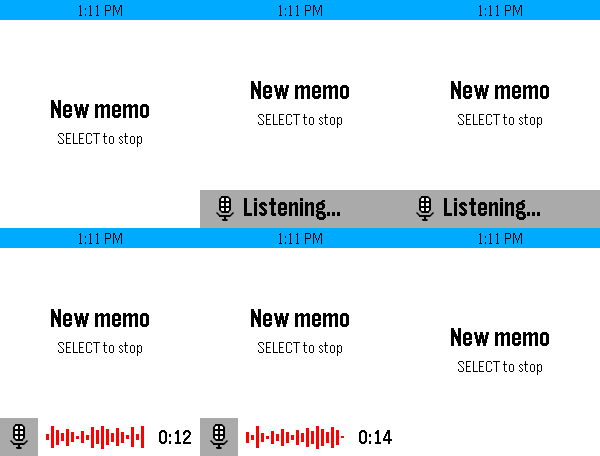
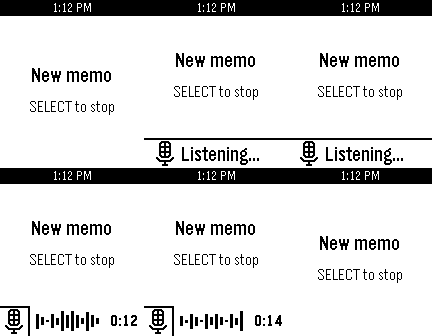
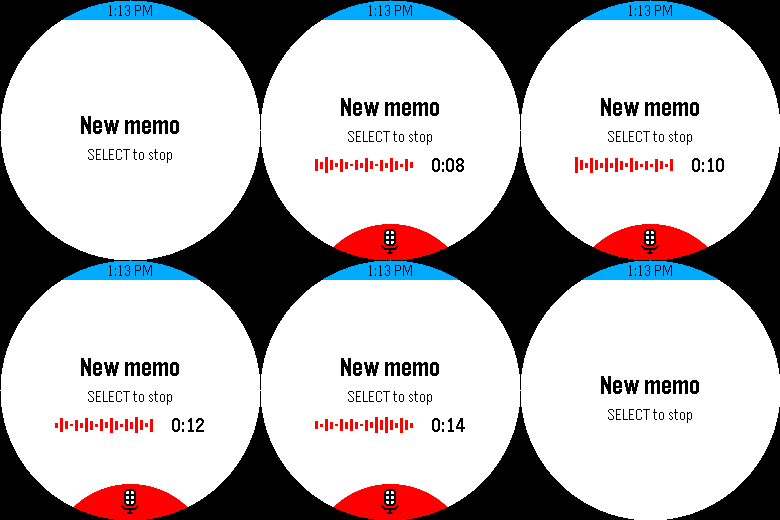
- On
emeryandflint, a "Listening..." bar slides up from the bottom of the screen. After 3 seconds it shrinks into a square in the bottom-left corner, which stays until the microphone stops. - On
gabbro, a red dome with a microphone icon rises from the bottom edge and stays as it is.
The indicator reserves the bottom of the screen through the unobstructed area,
the same way Timeline Quick View does on watchfaces. The reserved height
doesn't change when the bar shrinks, so an app laid out with
layer_get_unobstructed_bounds() moves once when the microphone starts and
once when it stops. The app redraws automatically whenever the unobstructed
area changes. See Unobstructed Area.
Showing a Status Next to the Indicator
Once the bar has shrunk into the corner, the rest of the reserved strip shows
the app again. layer_get_mic_accessory_bounds() returns that area, to the
right of the square, in a layer's coordinates. It's the place for a short
status, such as the elapsed time and level meter in the memo app above:
static void canvas_update_proc(Layer *layer, GContext *ctx) {
  // The main layout goes in the unobstructed area
  const GRect bounds = layer_get_unobstructed_bounds(layer);
  draw_title(ctx, bounds);

  GRect accessory;
  if (layer_get_mic_accessory_bounds(layer, &accessory)) {
    // Next to the indicator, with some padding from the square
    draw_status(ctx, grect_inset(accessory, GEdgeInsets(0, 8)));
  } else if (mic_capture_is_active()) {
    // No room next to the indicator, as on gabbro: use the main layout
    draw_status(ctx, GRect(bounds.origin.x, bounds.origin.y + bounds.size.h - 40,
                           bounds.size.w, 30));
  }
}
- Draw in the area whenever the function returns
true. The full bar covers it at first and uncovers it as it shrinks, so there's nothing to time. - The area keeps the bar's height while the indicator slides in and out, so what's drawn in it moves with the indicator. The app redraws on every step, as it does for any unobstructed area change.
- It returns
truefrom the moment the microphone starts until the indicator has slid away, so an app that falls back to its main layout when it returnsfalsenever shows the status in both places. - The area is clipped to the layer's sides, but not to its top or bottom. A
layer next to an
ActionBarLayergets the part up to the action bar. - On
gabbroit always returnsfalse, because the dome leaves no room beside it. Show the status in the main layout instead, as in theelsebranch above. - The area is small, about 160 by 38 pixels on
emeryand 114 by 30 pixels onflint, so keep the content short.
Detecting Microphone Support
The Microphone API only works on emery, flint and gabbro. Checking
PBL_MICROPHONE isn't enough on its own, because it's also defined on
basalt, chalk and diorite, which only support dictation. Those
platforms also define PBL_SDK_FROZEN, so check both at compile time:
#if defined(PBL_MICROPHONE) && !defined(PBL_SDK_FROZEN)
  start_capture();
#else
  text_layer_set_text(s_status_layer, "No microphone");
#endif
On the other platforms the functions still compile, but
mic_stream_to_phone_start() and mic_capture_start() always return
MicStreamStartErrUnavailable and MicCaptureStartErrUnavailable, so
apps that call the API on every platform can check the return value
instead.
Testing in the Emulator
The emulator supports both streaming and capture with pebble-tool 5.1.0 or
later. Use pebble emu-mic to feed audio into the emulated microphone while
the app listens:
$ pebble emu-mic                    # a 440 Hz tone
$ pebble emu-mic --tone 1000        # a 1 kHz tone
$ pebble emu-mic --noise            # white noise
$ pebble emu-mic --file speech.wav  # a WAV file; add --loop to repeat it
$ pebble emu-mic --live             # your computer's microphone
The emulator allows WatchMicrophone for every app that declares it. Use
pebble emu-permission to try out a refusal, or the user taking away the
permission while the app is listening:
$ pebble emu-permission WatchMicrophone --deny
$ pebble emu-permission WatchMicrophone --grant
$ pebble emu-permission WatchMicrophone --reset
--live needs pebble-tool's optional mic extra, and on Linux also
libportaudio2.
Battery Considerations
Keeping the microphone on uses a lot of power. Streaming also keeps the Bluetooth connection busy. Only listen while the user is actively using the feature, and stop the microphone as soon as it's no longer needed.