Battery Meter and Connection Alerts
This page contains some instructions that are different if you're using CloudPebble or if you're using the SDK locally on your computer.
Select whether you're using CloudPebble or the SDK below to show the relevant instructions!
 Showing instructions for CloudPebble. Not using CloudPebble?
 Showing instructions for the SDK. Using CloudPebble?
Our watchface tells the time with style, but a great watchface also gives useful information at a glance. In this part we will add two popular features: a battery meter and a connection disconnect alert.
By the end of this part, your watchface will look something like this:
emery
gabbro
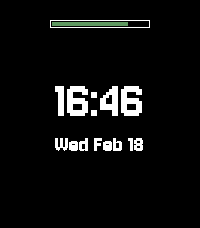
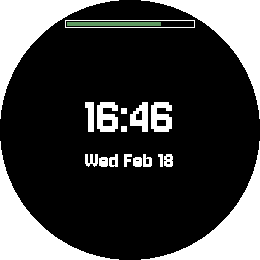
This section continues from Part 2, so be sure to re-use your code or start with that finished project.
The Battery Meter
Reading Battery State
In Alloy, battery information comes from the Battery sensor. Import it at the
top of your file:
import Battery from "embedded:sensor/Battery";
Create a Battery instance with an onSample callback that fires whenever the
battery state changes:
let batteryPercent = 100;

const battery = new Battery({
    onSample() {
        batteryPercent = this.sample().percent;
        drawScreen();
    }
});
batteryPercent = battery.sample().percent;
battery.sample() returns an object with percent (0–100), charging
(boolean), and plugged (boolean). We call sample() once at startup to get
the initial value, and the onSample callback handles updates. Each update
triggers a full redraw.
Drawing the Battery Bar
We will draw the battery bar near the top of the screen. It has a white border with a filled portion that changes color based on the charge level - green when healthy, yellow when getting low, red when critical.
Add a drawBatteryBar() function:
const green = render.makeColor(0, 170, 0);
const yellow = render.makeColor(255, 170, 0);
const red = render.makeColor(255, 0, 0);

function drawBatteryBar() {
    const barWidth = (render.width / 2) | 0;
    const barX = ((render.width - barWidth) / 2) | 0;
    const barY = render.height < 180 ? 6 : 20;
    const barHeight = 8;

    // Draw border
    render.fillRectangle(white, barX, barY, barWidth, barHeight);
    render.fillRectangle(black, barX + 1, barY + 1, barWidth - 2, barHeight - 2);

    // Choose color based on battery level
    let barColor;
    if (batteryPercent <= 20) {
        barColor = red;
    } else if (batteryPercent <= 40) {
        barColor = yellow;
    } else {
        barColor = green;
    }

    // Draw filled portion
    const fillWidth = ((batteryPercent * (barWidth - 4)) / 100) | 0;
    render.fillRectangle(barColor, barX + 2, barY + 2, fillWidth, barHeight - 4);
}
The | 0 trick truncates floating-point results to integers, which is faster
than Math.floor() on an embedded device.
We position the bar differently based on screen height
(render.height < 180) so it looks good on both Emery and Gabbro.
Call drawBatteryBar() inside draw(), after clearing the background.
Connection Disconnect Alert
Monitoring Connection State
Alloy provides connection status through the watch.connected object. We can
listen for changes with the connected event:
let isConnected = true;

function checkConnection() {
    isConnected = watch.connected.app;
    drawScreen();
}
watch.addEventListener("connected", checkConnection);
checkConnection();
watch.connected.app is true when the watch is connected to the phone app,
false when disconnected. We check immediately at startup and on every change.
Showing the Disconnect Indicator
When the connection is lost, we draw a red "X" below the battery bar. Add this to your draw function after the battery bar:
    // Draw disconnect indicator below battery bar
    if (!isConnected) {
        const btStr = "X";
        const btWidth = render.getTextWidth(btStr, smallFont);
        const btY = render.height < 180 ? 16 : 30;
        render.drawText(btStr, smallFont, red,
            (render.width - btWidth) / 2, btY);
    }
You will need the smallFont for this - add it with your other font
declarations:
const smallFont = new render.Font("Gothic-Regular", 18);
Updating the Draw Function
Since battery and connection changes now trigger redraws outside of time events,
we need to handle the case where draw() is called without an event. Rename
it to drawScreen() and add a fallback for the date:
let lastDate = new Date();

function drawScreen(event) {
    const now = event?.date ?? lastDate;
    if (event?.date) lastDate = event.date;

    // ... rest of draw code
}
The event?.date optional chaining returns undefined if event is missing
or has no date. The ?? nullish coalescing operator falls back to lastDate.
We save the latest date so non-time redraws still show the correct time.
Update the event listener to use the new name:
watch.addEventListener("minutechange", drawScreen);
Testing in the Emulator
Click the play button to compile and install your watchface in the CloudPebble emulator.
Build and install your watchface:
$ pebble build && pebble install --emulator emery
Setting the Battery Level
In the CloudPebble emulator, use the gear menu to adjust the battery level.
Use pebble emu-set-battery to change the simulated battery level:
$ pebble emu-set-battery --percent 80
$ pebble emu-set-battery --percent 30
$ pebble emu-set-battery --percent 10
You should see the bar go from green to yellow to red as the level decreases.
Toggling the Connection
In the CloudPebble emulator, use the gear menu to toggle the connection on and off.
Use pebble emu-bt-connection to simulate a disconnect:
$ pebble emu-bt-connection --connected no
$ pebble emu-bt-connection --connected yes
When disconnected, the red "X" should appear below the battery bar.
Conclusion
In this part we learned how to:
- Import and use the
Batterysensor for charge level updates. - Draw a color-coded battery bar using Poco primitives.
- Monitor connection status with
watch.connectedand theconnectedevent. - Show a disconnect indicator.
- Handle redraws triggered by non-time events.
Your watchface now shows the battery level and alerts you when the phone disconnects. Check your code against the source for this part.
What's Next?
In the next part we will add weather information by fetching data from the Open-Meteo API - our first foray into network communication.